 Delivery & Setup Included
Big Premiere
Premium indoor or outdoor cinema with dual 400W sound.
Quick Setup Guide
What's in the Box
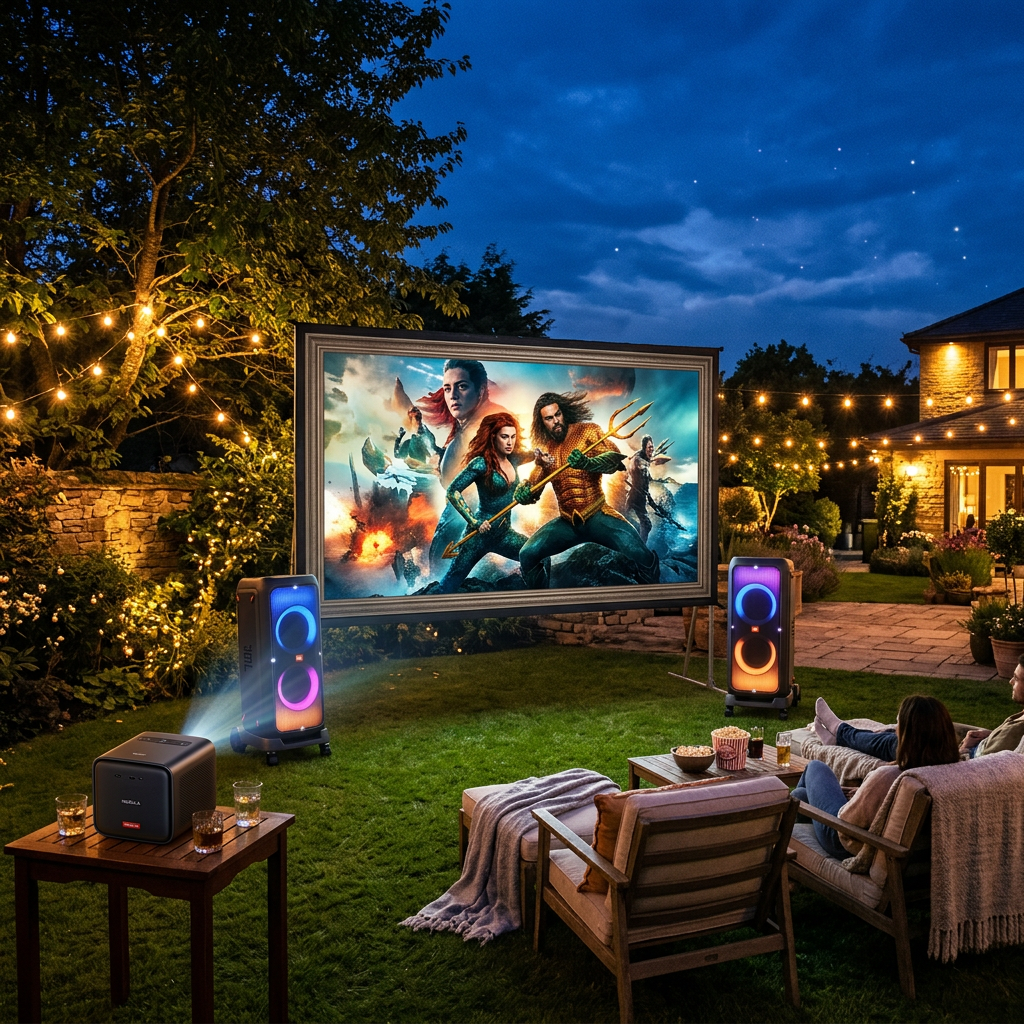
We deliver and set everything up — Nebula Cosmos 4K SE projector, two JBL PartyBox 520 speakers, and your 120-inch or 150-inch premium freestanding projector screen.
Screen Setup
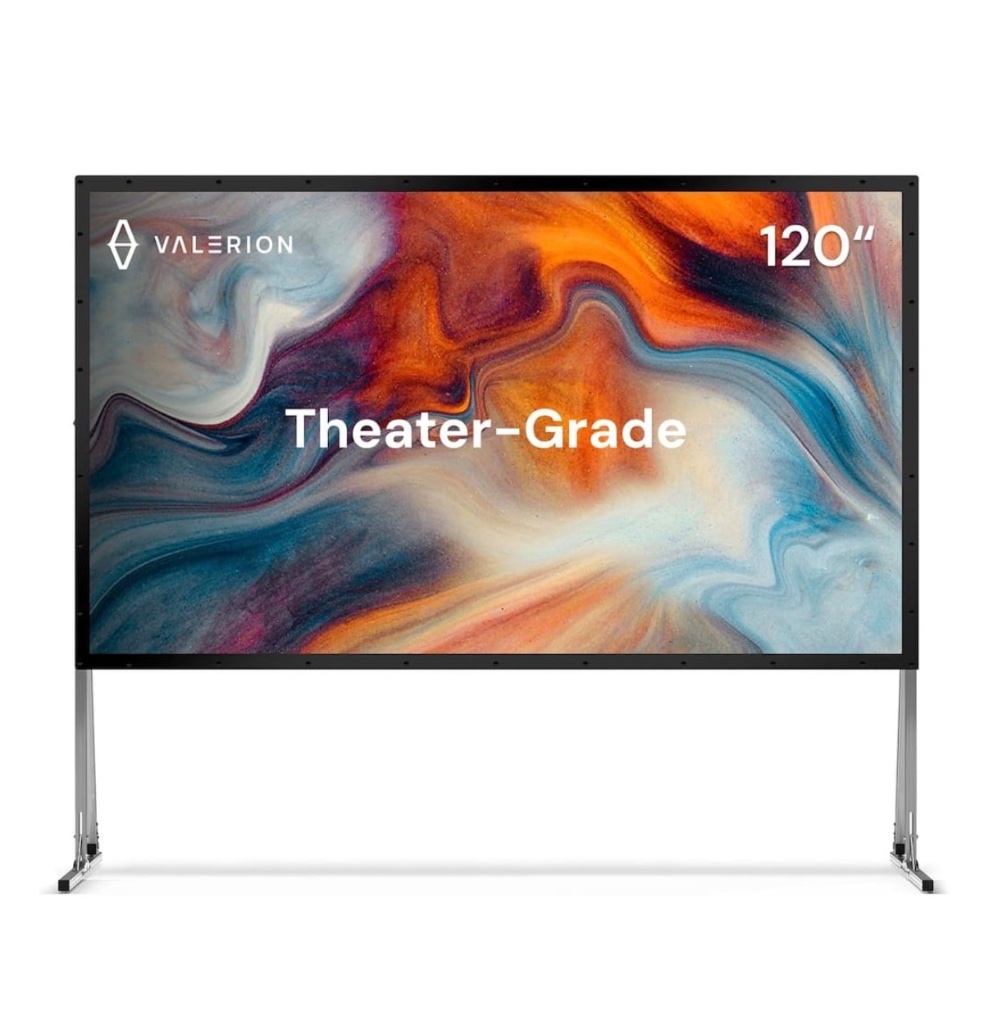
The premium freestanding screen is positioned against your longest wall indoors or guy-lined on flat ground outdoors. Choose 120" or 150" based on your space.
Power On the Projector

Press and hold the Power button on top of the Nebula Cosmos 4K SE for 2 seconds — the Google TV home screen appears with auto-focus and auto-keystone.
Connect to WiFi
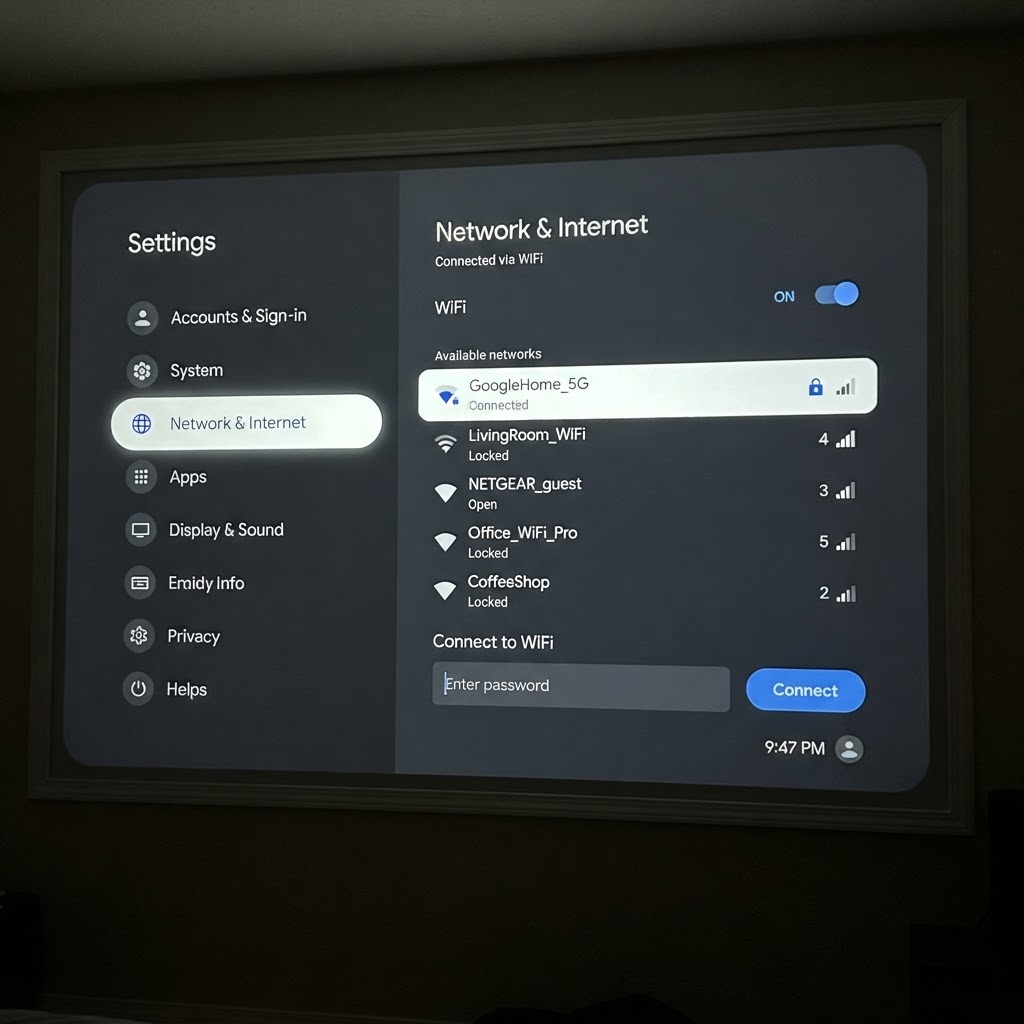
From the Google TV home screen, select the gear icon (top-right) → Network & Internet → choose your WiFi and enter your password.
Open Your Apps
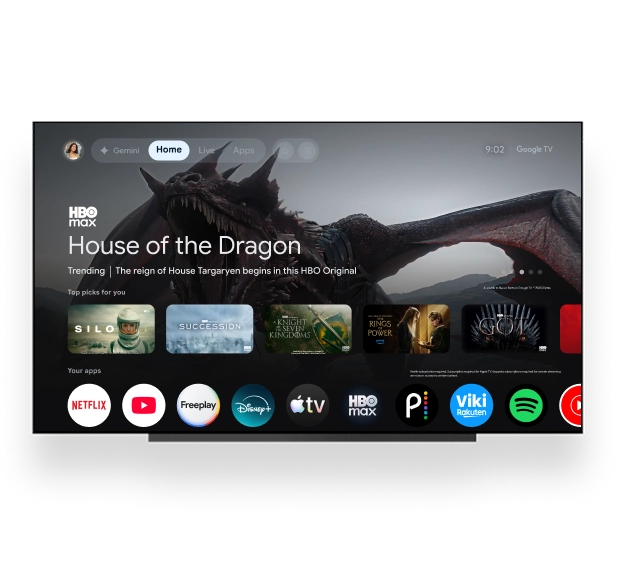
The Cosmos 4K SE runs Google TV — your apps appear on the home screen. Sign into Netflix, Disney+, YouTube, or Prime Video. Need more? Download from the Google Play Store.
Pair the Speakers
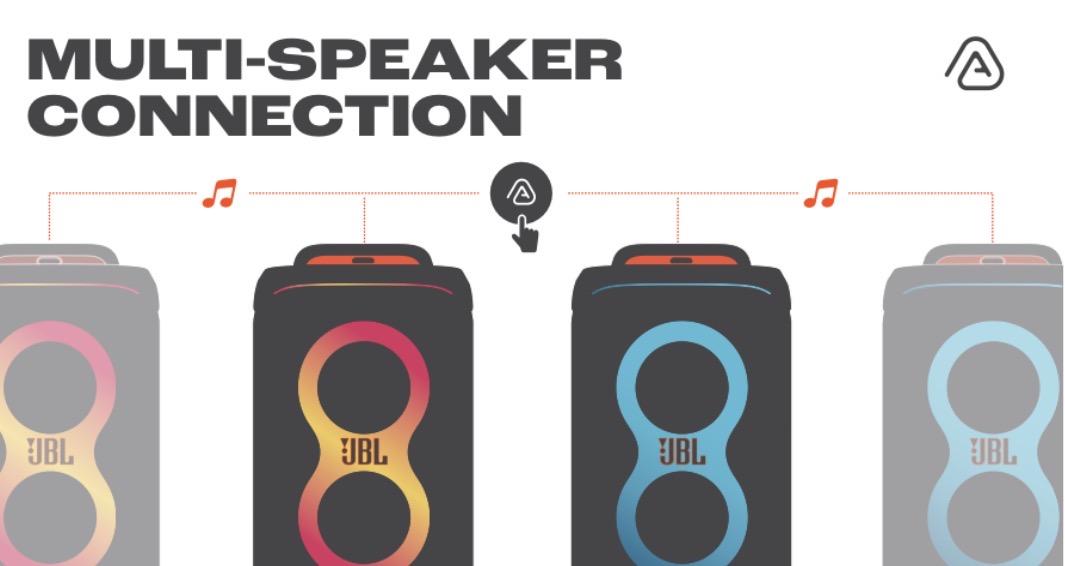
Press Auracast on the first PartyBox 520, then on the second — they pair as stereo left/right. Then pair the projector to the first speaker via Bluetooth.
Enjoy the Show
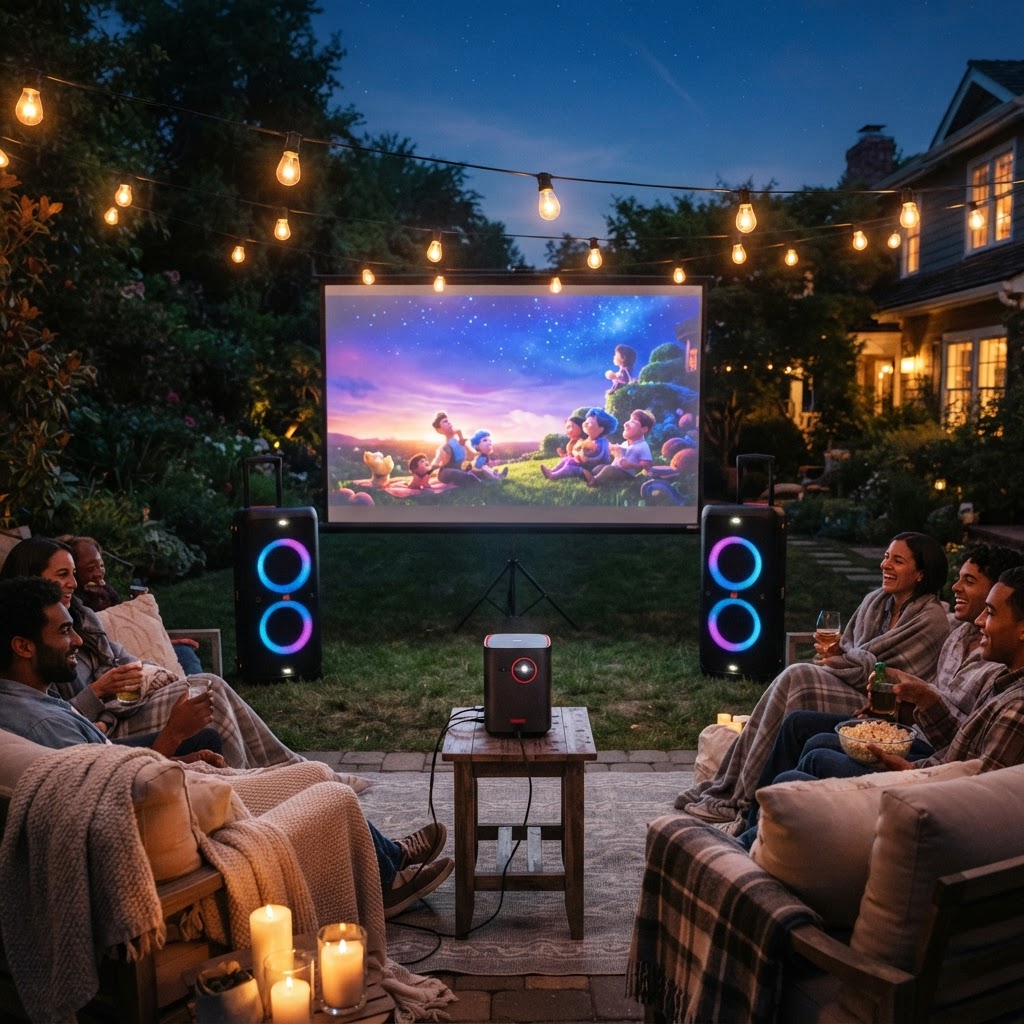
We return at the booked time to pack it all down. Enjoy your movie!
Quick Troubleshooting Guide
How to pair speakers via Auracast
Press the Auracast button on the first PartyBox 520, then on the second — they pair as stereo left/right. Then pair the projector to the first speaker via Bluetooth.
Only one speaker playing?
Pair the projector to ONE speaker — the other follows via Auracast. Don't pair to both.
Picture washed out?
For outdoor setups, wait for full dark after sunset. Indoors, turn off nearby lights. Projectors need darkness for the best picture.
Blurry?
Nudge the projector — autofocus re-runs automatically.
Battery life?
The Nebula Cosmos 4K SE requires wall power — plug it into a standard outlet. Each PartyBox 520 runs up to 15 hours on battery.
Projector won't turn on?
Press and hold the Power button on the Nebula Cosmos 4K SE for 2 seconds. Make sure the projector is plugged into a standard outlet.
In Your Kit
- Nebula Cosmos 4K SE projector (requires wall power)
- 2× JBL PartyBox 520 speakers (stereo, up to 15 hrs battery each)
- 120" or 150" premium freestanding projector screen + guy lines (outdoor use)
- HDMI cable + power cords
Optional Upgrade: Nebula Mars 3
Your package includes the Nebula Cosmos 4K SE by default. If you upgraded to the battery-powered Nebula Mars 3, it runs up to 5 hours without a wall outlet.
How to turn on
Press and hold the Power button on top of the Nebula Mars 3 for 2 seconds — the Google TV home screen appears with auto-focus and auto-keystone.
Running on battery?
The Mars 3 runs up to 5 hours on a full charge. For longer sessions, plug it into a standard outlet — it charges while in use.
Battery dead?
Plug the Mars 3 into a standard outlet with the provided power cord. It charges while in use — no downtime needed.
Projector won't turn on?
Press and hold the Power button on the Nebula Mars 3 for 2 seconds. If the battery is fully depleted, plug it in — it charges while in use.
Using a Roku stick?
Plug the Roku stick into the HDMI port on the side of the Mars 3. Connect the Roku's USB power cable to the USB port on the Mars 3, or use the included USB power adapter plugged into a wall outlet. Switch the projector's input to HDMI using the Source/Input button on the remote. Follow the on-screen Roku setup to connect to WiFi and sign into your streaming apps.
Roku remote not responding?
Point the Roku remote directly at the stick (not the projector). If it still doesn't respond, unplug the Roku stick for 10 seconds, plug it back in, and wait for the Roku logo to appear. Re-pair the remote by holding the pairing button inside the battery compartment for 3 seconds.
No sound from Roku?
Press the volume up button on the Roku remote. If using external speakers, make sure they're connected via Bluetooth to the Mars 3 or wired to the projector's audio-out jack.
Need help? Text us: (971) 340-6540
Setup and teardown always included. Sign out of streaming accounts before we pack down. Thanks!
VibeBox LLC · Parker, Colorado · Big Sound. Big Screen. Big Moments.